---
title: How to access user’s inputs in an automation flow?
description: "💡 [What's an automation flow?](https://support.flowtrack.co/What-is-an-automation-Flow-8feeb15aee0f4939a902c2a0cf85c7dc?pvs=21) 💡 [How to create an automation flow with a form?](https://support.flowtrack.co/How-to-create-an-automation-flow-with-a-form-cf48e33ccc664e66bba18d0a4d231569?pvs=21) # Steps to get user’s inputs in a flow ## Use the ‘Condition’ step inside the flow builder ### Drag the ‘Condition’ step Inside flow…"
url: "https://crmhelpdocs.com/docs/how-to-access-users-inputs-in-an-automation-flow/"
updated: "2023-10-09"
category: "Automation | Flows"
---
# How to access user’s inputs in an automation flow?
# Steps to get user’s inputs in a flow
## Use the ‘Condition’ step inside the flow builder
### Drag the ‘Condition’ step
Inside flow builder, we have the 'Condition' step under the logic section. This step will help to check the user's inputs.
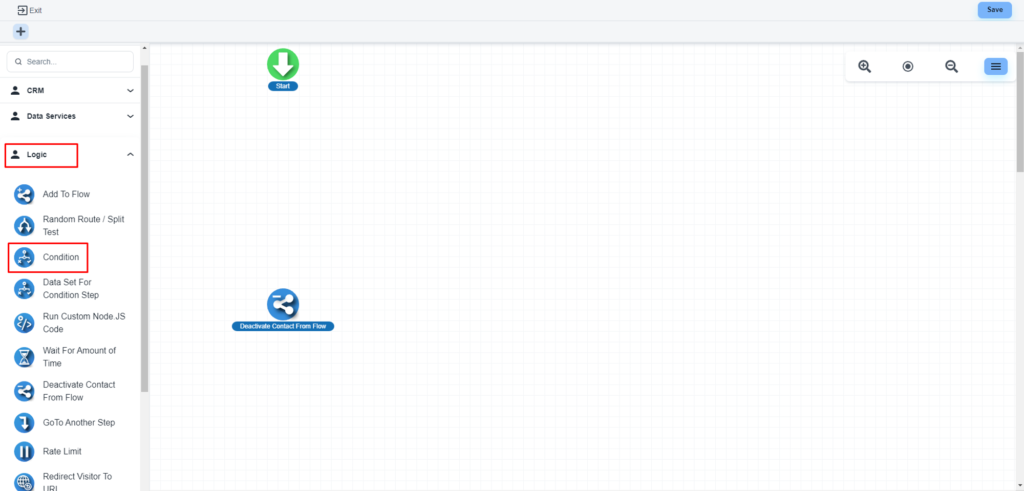
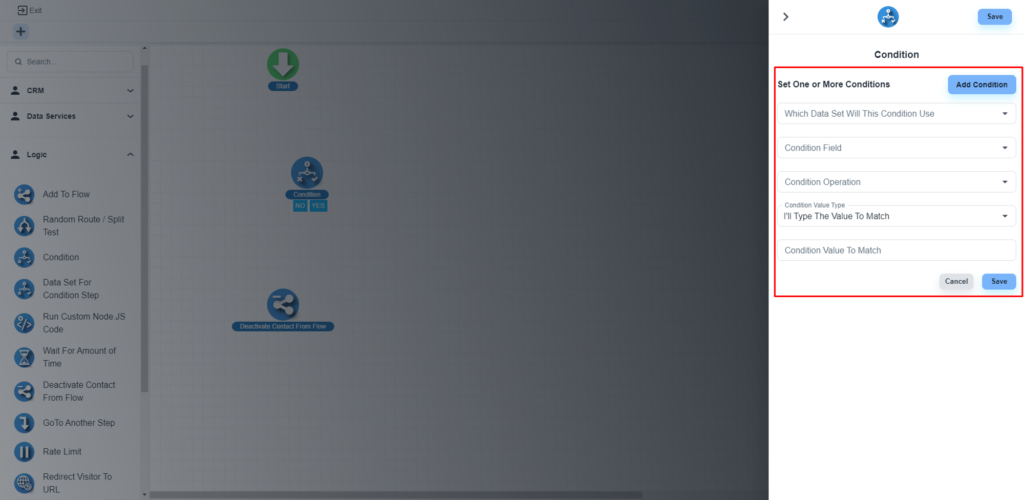
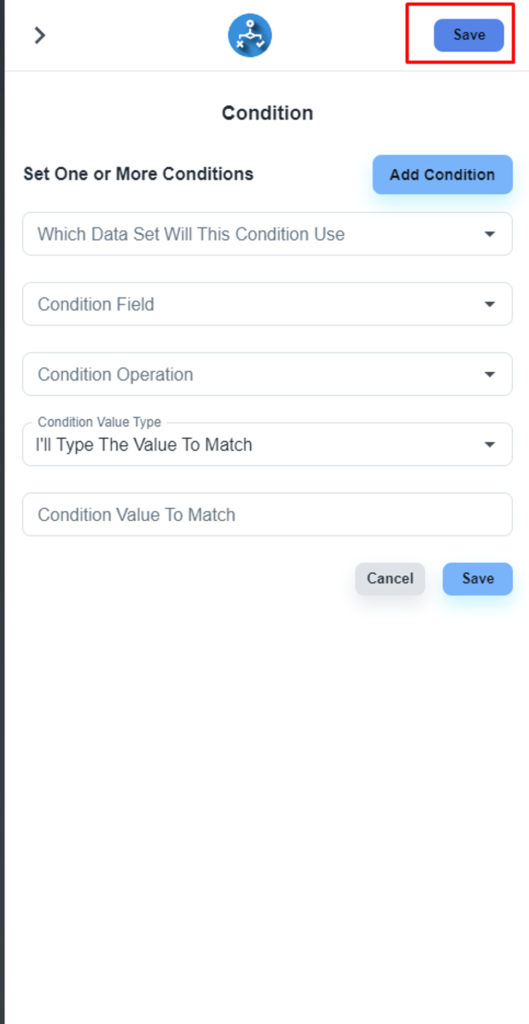
If you drag that component to your flow builder board, the system will show you the configuration window.
### Set condition
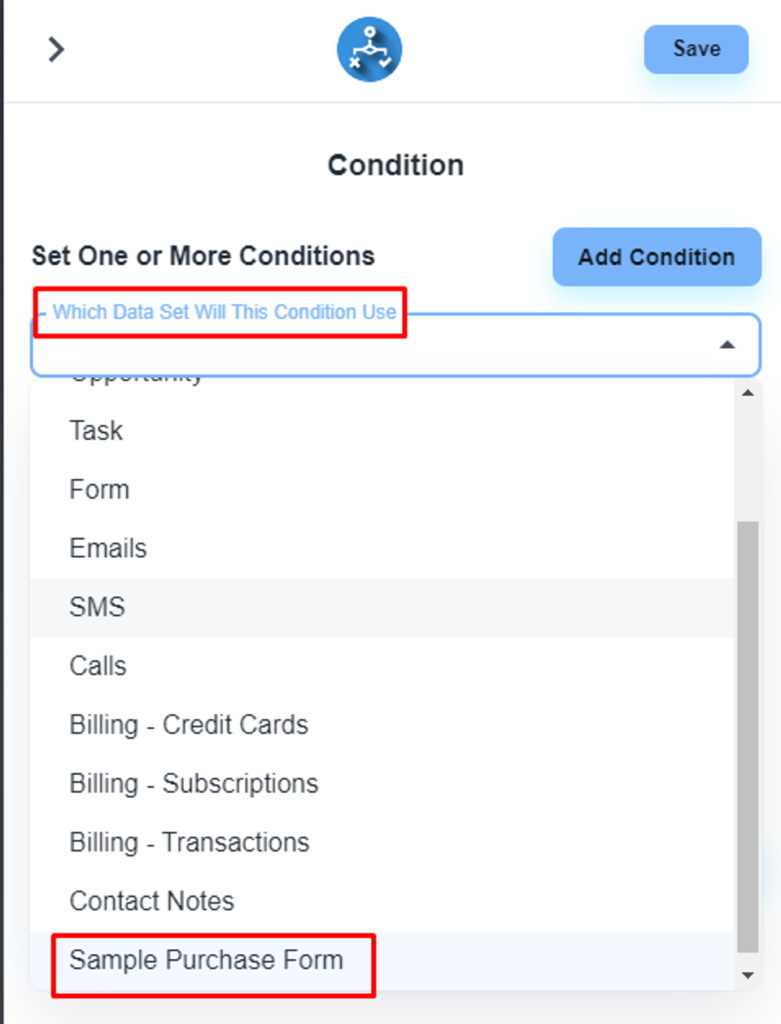
Please, select the first dropdown ‘Which Data Set Will This Condition Use’. At the very bottom, you will get the connected form with the flow.
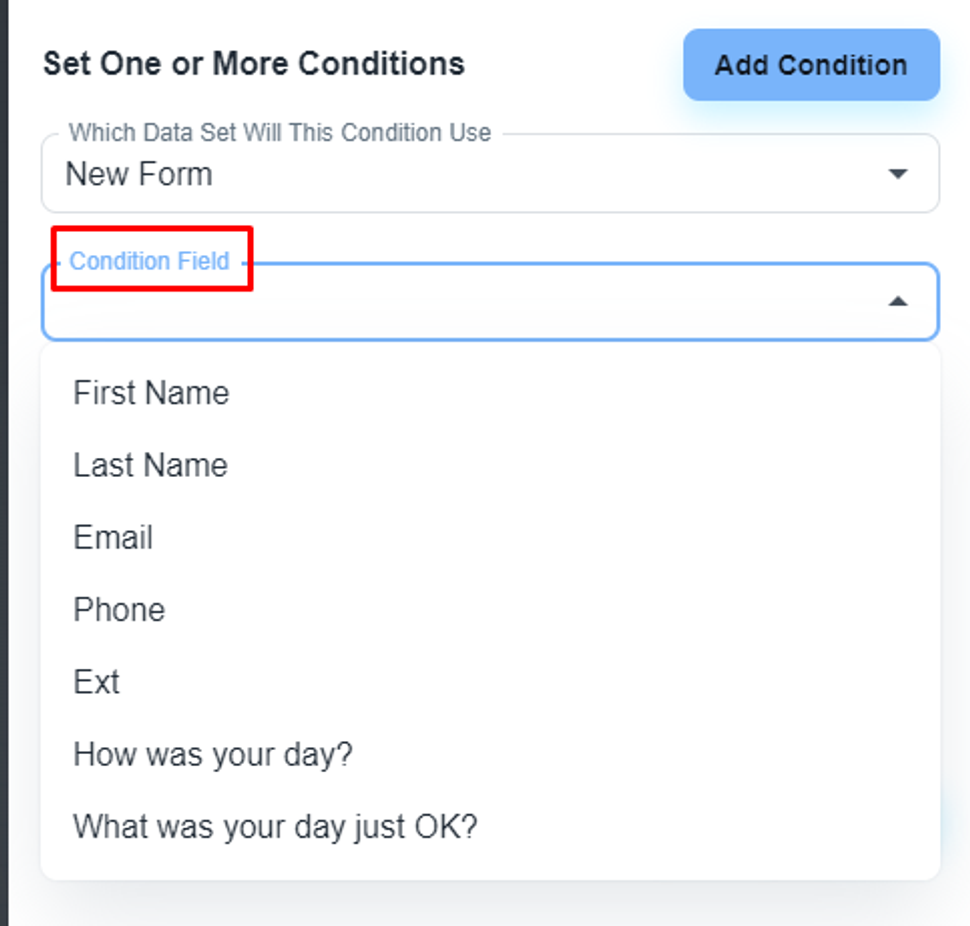
### Set condition field
At the ‘Condition’ field dropdown, you can access all the available fields on the form.
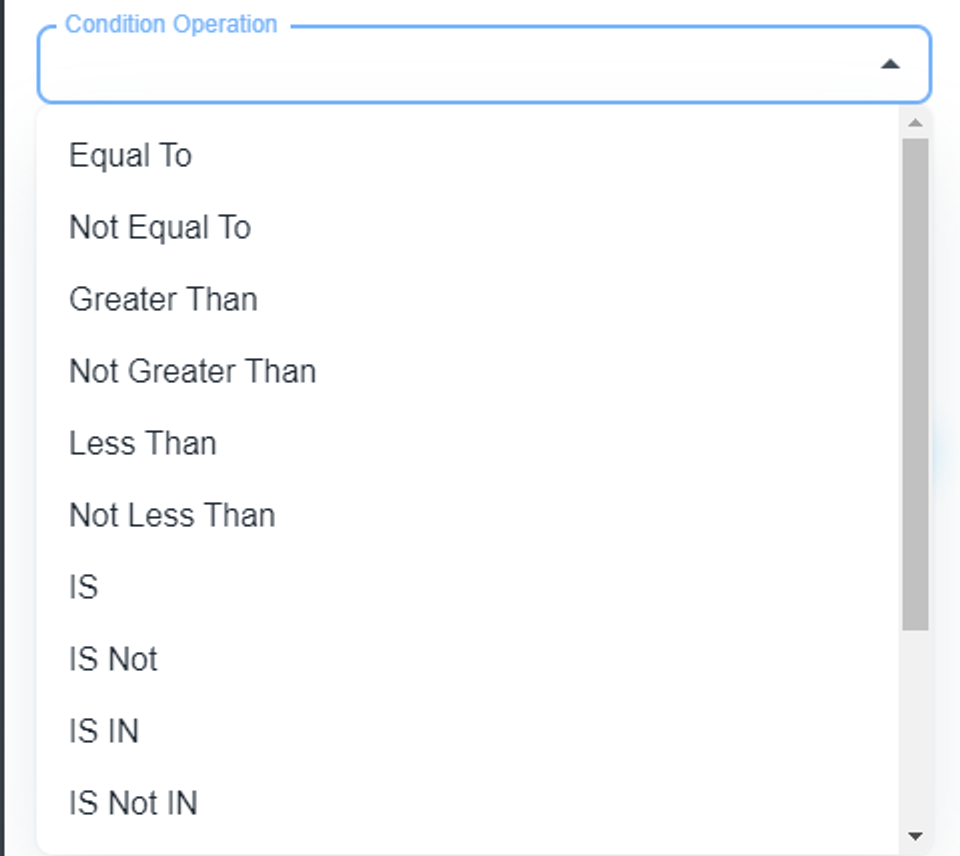
### Set condition operation
You can have multiple condition operators.
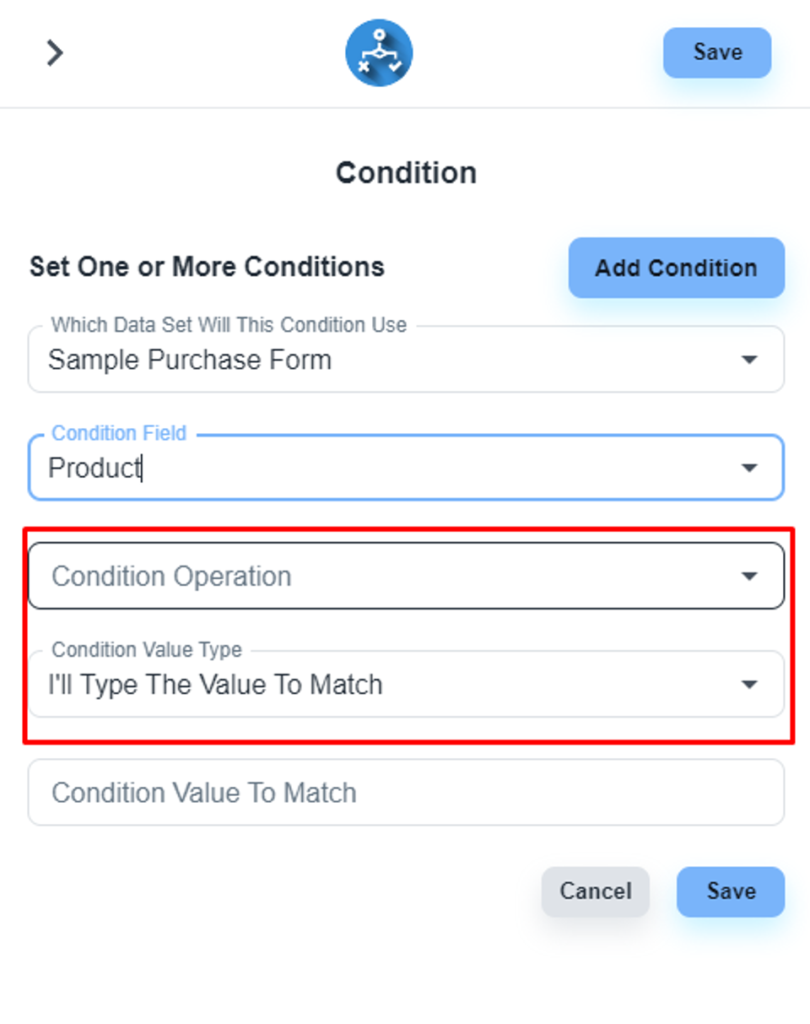
Please, adjust these two dropdown fields as per your business requirements.
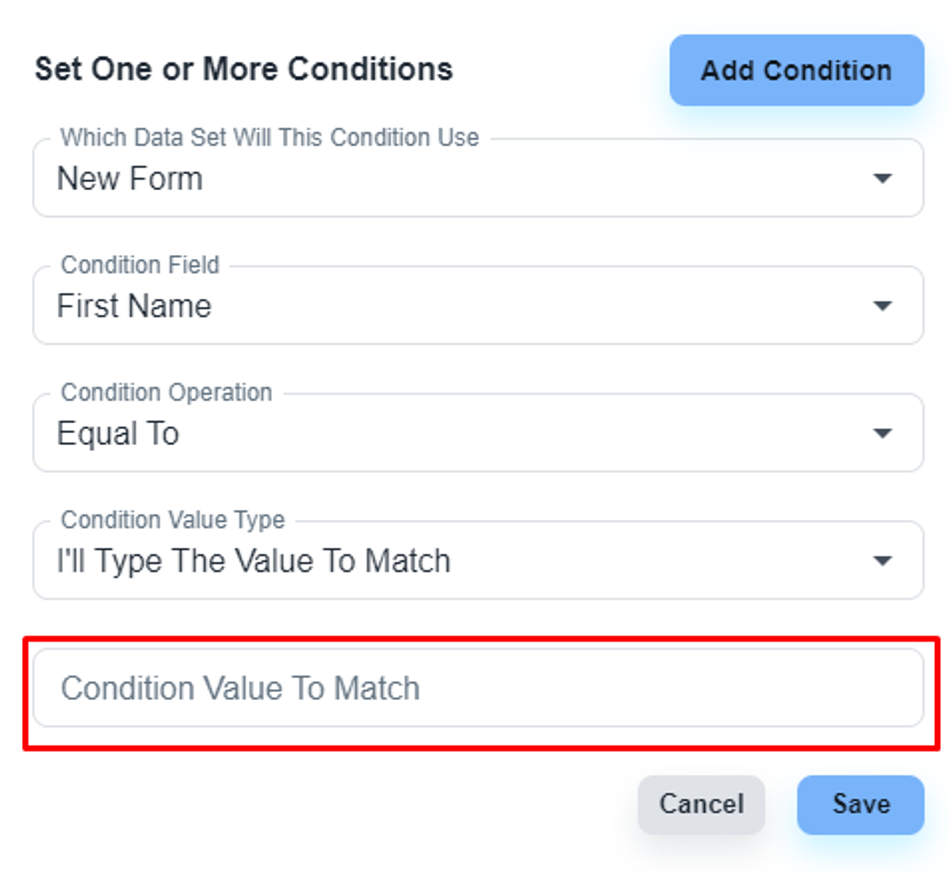
### Set condition value
At the last dropdown, you can set the condition value.
### Save the step details
After configuring the step, please click on the ‘Save’ button to save the step details
### Save the flow
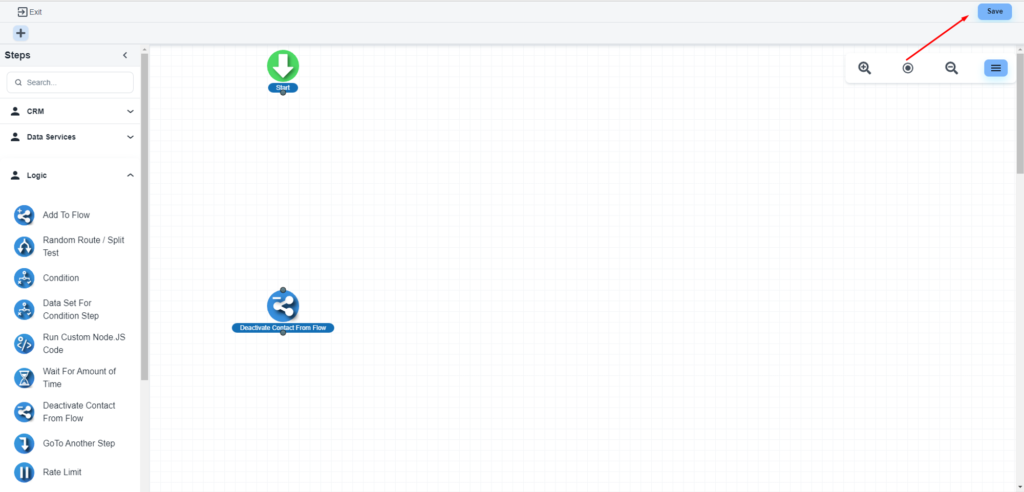
After completing the design works, please click on the ‘Save’ button